🎛️
Photoreal panels
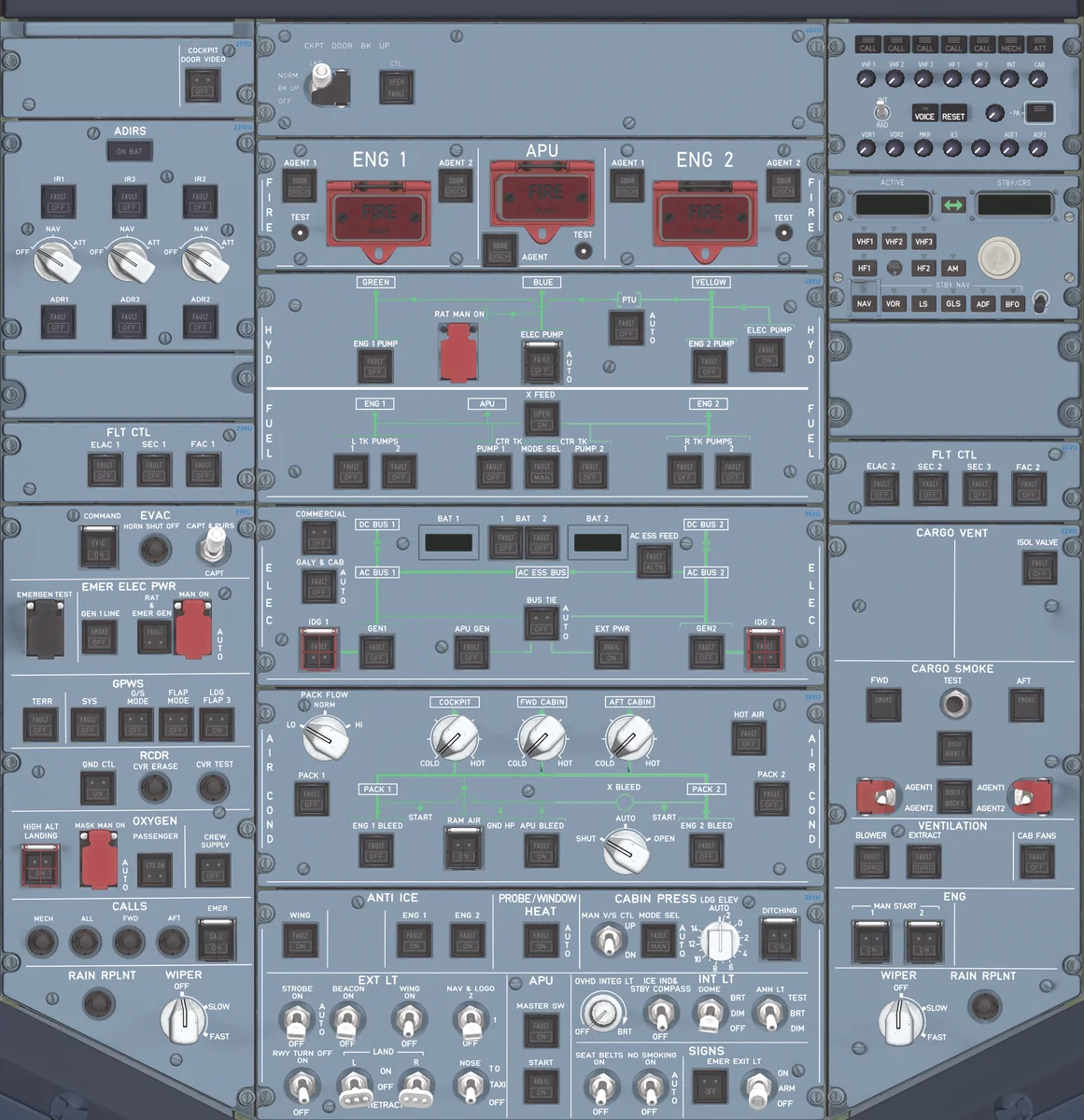
Each panel is rendered from the aircraft itself — every switch position, knob and guard, with annunciators and backlighting that light up as they do in the cockpit.
Your aircraft's panels, out of the cockpit view.
The overhead, FCU, radios, ECAM, MCDU and landing gear of your add-on aircraft — each in its own window, on a second screen, on a tablet, or on WinWing hardware. Switches, lights and displays follow the aircraft live, and what you do on them goes straight back to it.
Windows 10 / 11 (64-bit). Viewing panels and WinWing hardware are free; working panels on screen is activated aircraft by aircraft.
No more panning around the virtual cockpit to find a switch. Open the panel you need, put it where it suits you, and fly.
Each panel is rendered from the aircraft itself — every switch position, knob and guard, with annunciators and backlighting that light up as they do in the cockpit.
Switches, lights and readouts follow the aircraft live; a click or a turn on the panel goes straight to the aircraft, guards and push/pull knobs included.
Overhead, FCU / MCP, radios, ECAM, MCDU / CDU, landing gear, EFB and ATC each in its own window — or several of them together in one combo window you lay out yourself.
Open any window on a tablet or another PC on your home network, right in the browser — nothing to install there, touch works.
FCU and EFIS, ECAM, AGP, throttle and sidestick buttons are linked to the aircraft you fly, with displays and lights driven from the sim — no extra profile software.
Where an aircraft draws its MCDU, EFB or displays itself, MyCockpit shows those very screens in its windows and passes your taps back.
Which windows are open and where they sit is remembered for each aircraft, and comes back the next time you load it.
MyCockpit recognises the add-on you load and switches to its panel by itself. Aircraft packs download from inside the app.
Interface in English, 中文 and 日本語. Installed copies keep themselves up to date.
Drag a window to the top, left or right edge of the screen and it docks there, leaving only a thin strip. Move the mouse to that edge and the panel slides out; move away and it tucks itself back — the view out of the cockpit stays clear.
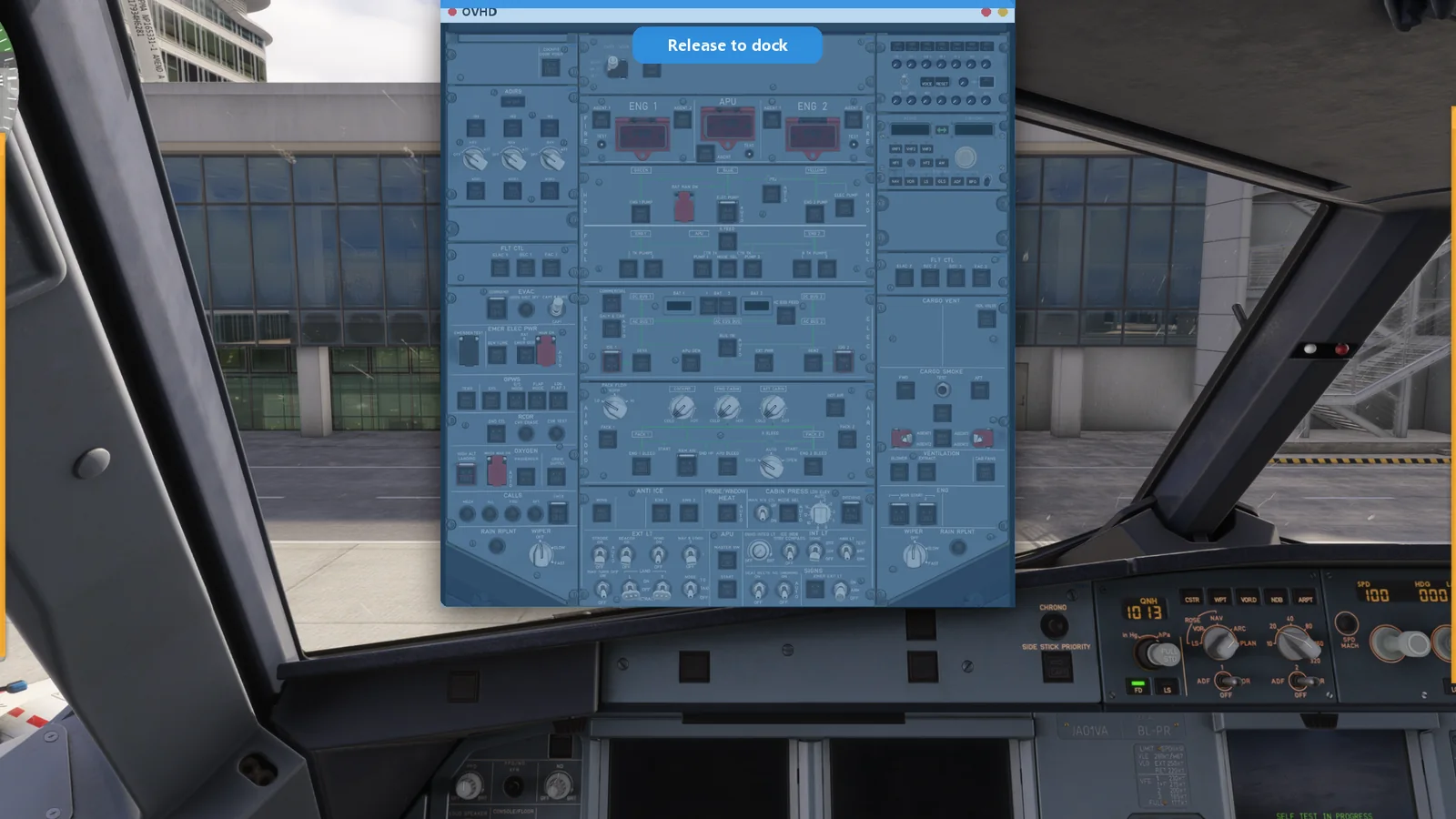
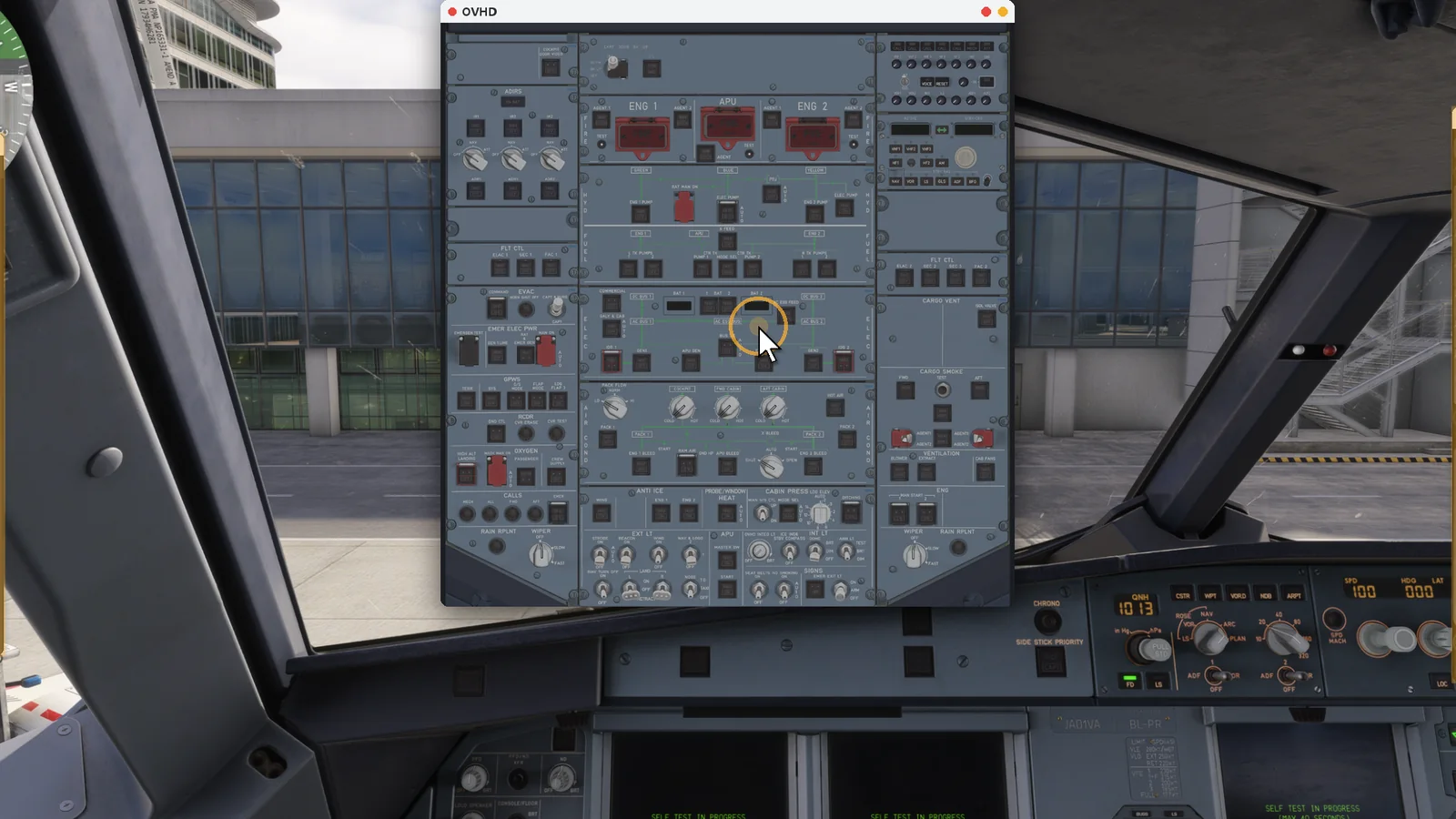
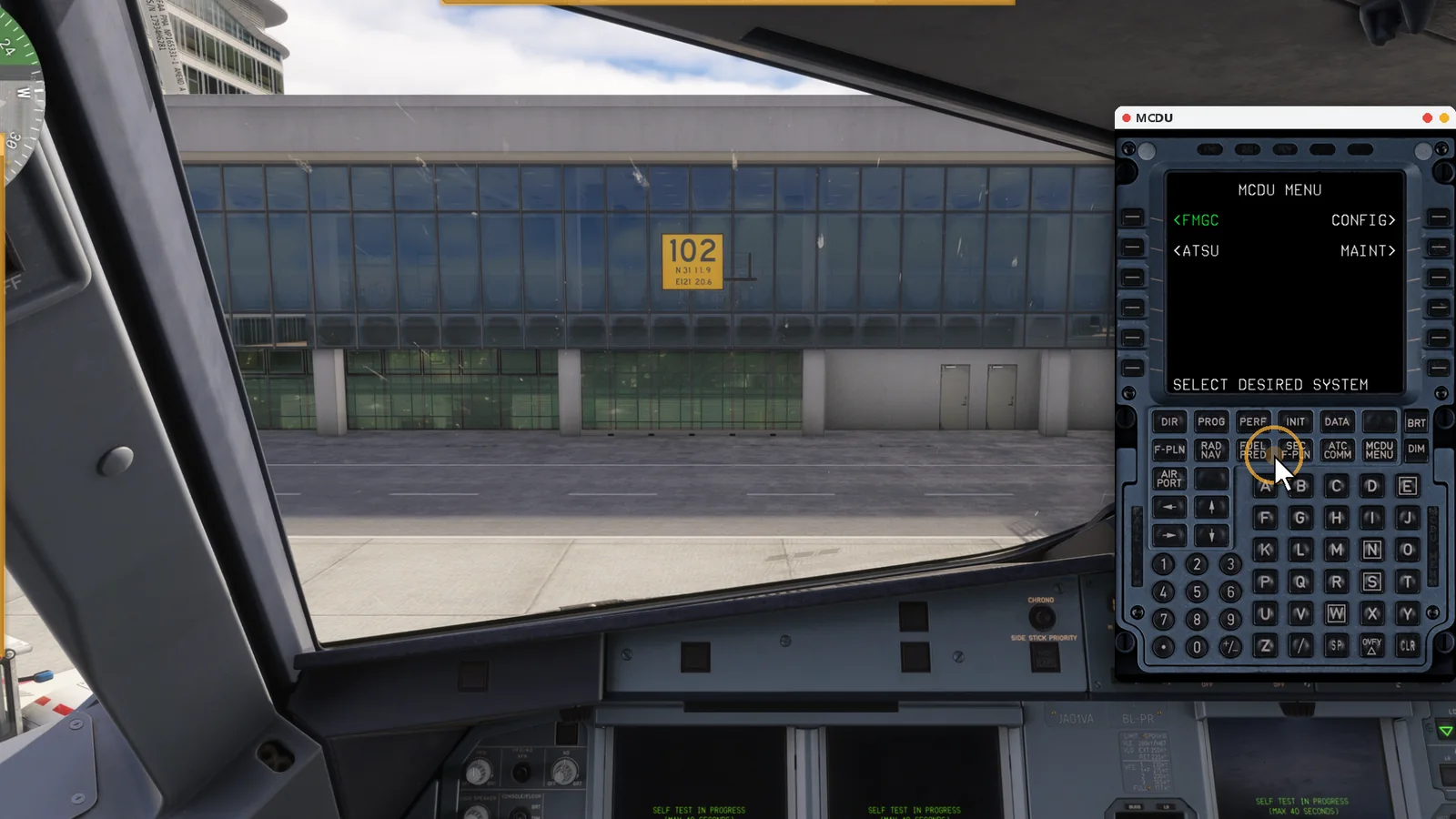
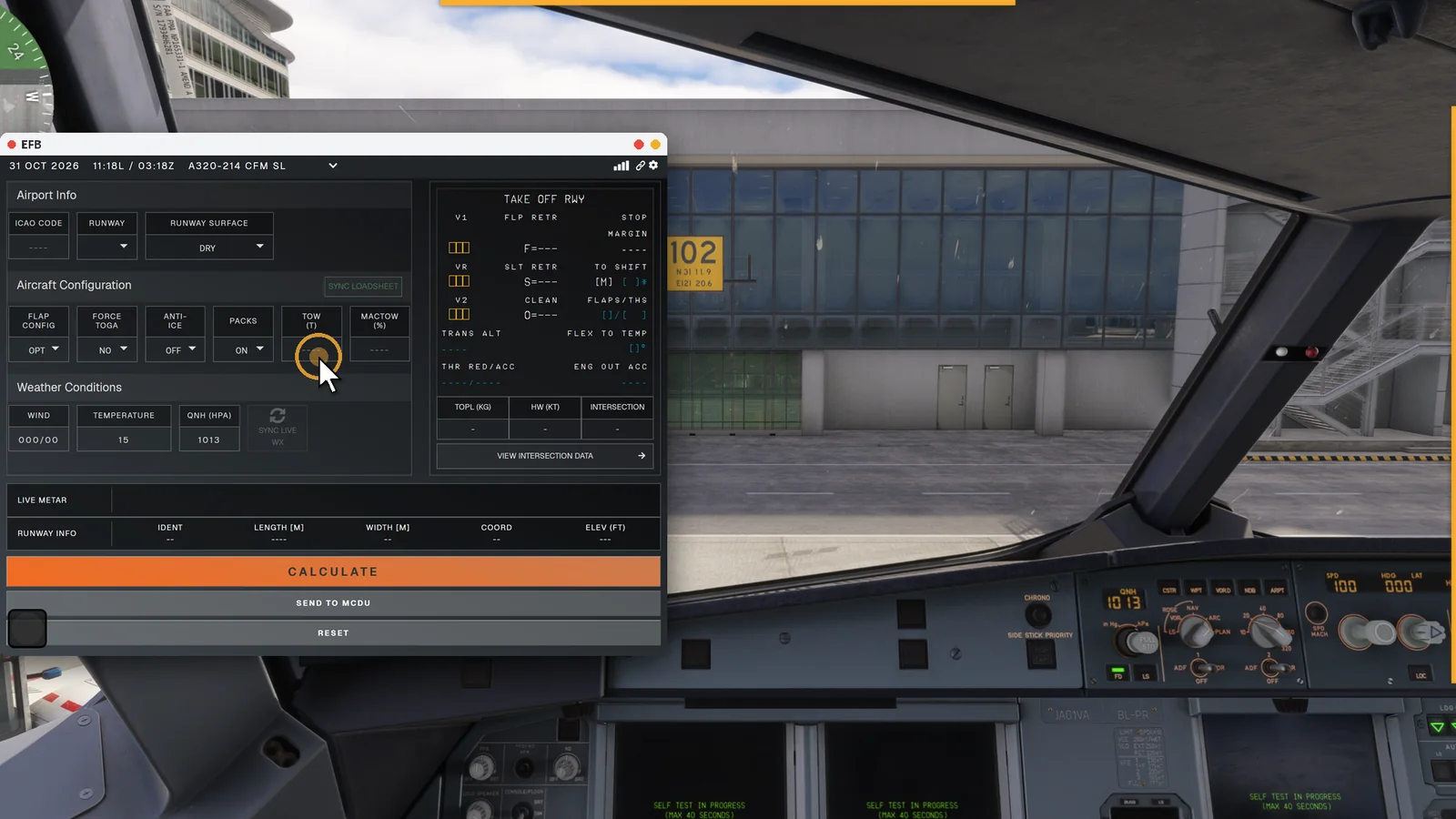
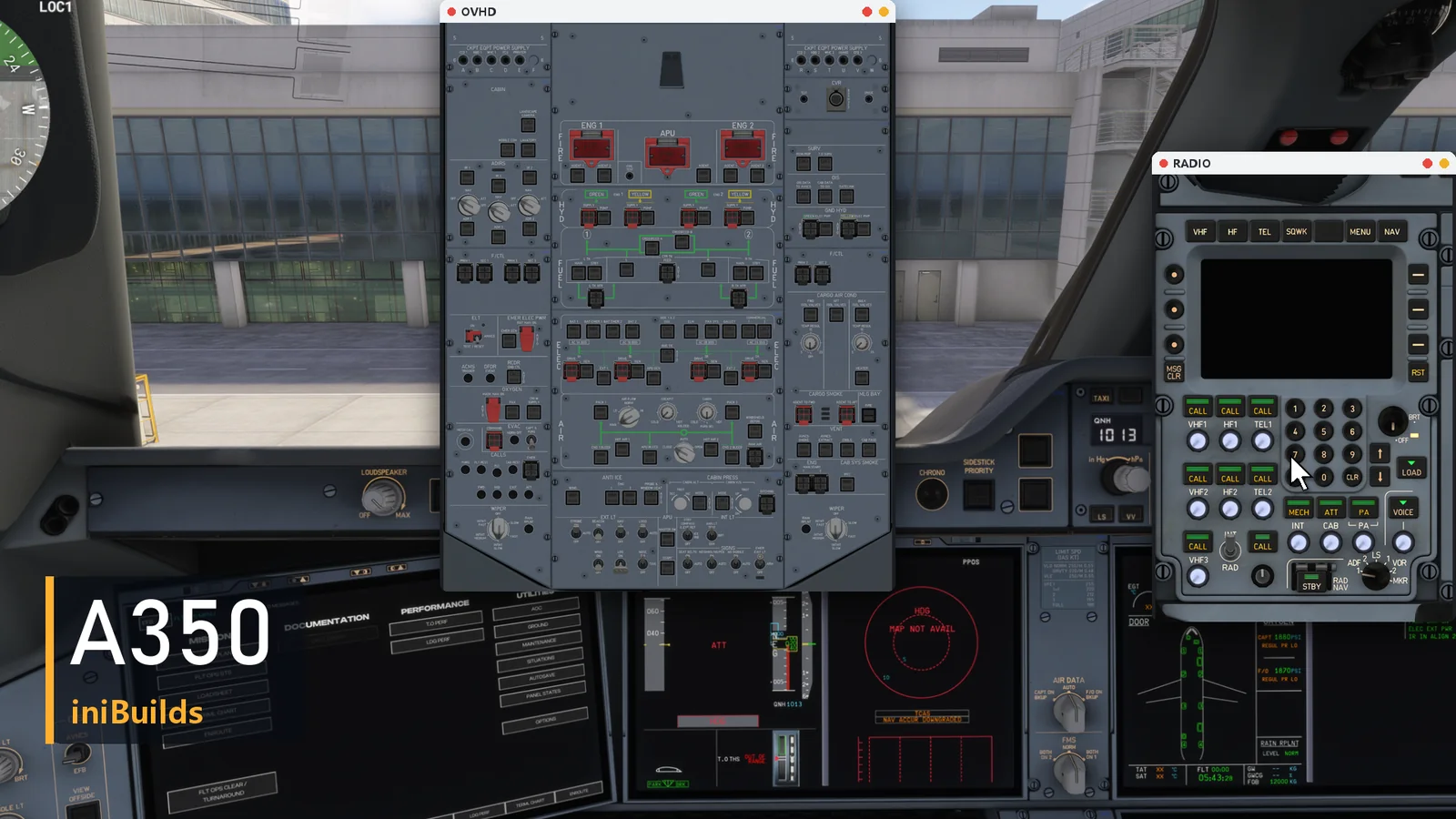
One panel per aircraft family, matched to the add-ons below. More aircraft are on the way.
The main overhead panel as shown in MyCockpit.
| Panel | Add-on aircraft |
|---|---|
| A320 family | Fenix A319 / A320 / A321 |
| A320neo | FlyByWire A32NX |
| A321 | FSLabs A321 / A321neo |
| A220-300 | iniBuilds A220-300 |
| A350 family | iniBuilds A350-900 / A350-1000 |
| A340-300 | iniBuilds A340-300 |
| A340-600 | Aerosoft A340-600 |
| A380-800 | FlyByWire A380X |
| A380-800 | iniBuilds A380-800 |
| 737 family | PMDG 737-600 / 700 / 800 / 900 |
| 737 MAX 8 | iFly 737 MAX 8 |
| 757-200 | BlueBird 757-200 |
| 777 family | PMDG 777-200ER / 200LR / 300ER / F |
| MD-11 | TFDi MD-11 / MD-11F |
| CRJ | Aerosoft CRJ550 / 700 / 900 / 1000 |
| E-Jet | FSS E170 / E175 / E190 / E195 / E190F / E195F |
Plug in your WinWing devices and they work the aircraft you fly. Each aircraft gets the hardware functions it actually has.
Please note: every device has to be tested on real hardware, and the author has only bought the WinWing models above — so only these devices are supported. Other brands and models are not supported for now.
Watching panels and flying with hardware cost nothing. Clicking and turning controls on screen is activated one aircraft panel at a time.
| Feature | Free | Activated panel |
|---|---|---|
| View every panel and window, following the aircraft live | ✓ | ✓ |
| Tablet / browser on your network (viewing) | ✓ | ✓ |
| WinWing hardware linked to the aircraft | ✓ | ✓ |
| Window layouts, combo window, aircraft packs | ✓ | ✓ |
| Click, turn and press controls on screen (mouse, touch, browser) | — | ✓ |
Register in MyCockpit with your e-mail; your key arrives by mail.
Each panel code you redeem adds one activation to your account.
Press Redeem on the aircraft's row — that panel is activated on your account.
Permanent or subscription licence — 15% off for good. Checked by your e-mail; these codes work only on the MyCockpit account with that same e-mail
Prices exclude local VAT, which is added at checkout. Codes are also sold on SimMarket; codes from either shop work the same. One account can be signed in on one PC at a time.
Yes. MyCockpit shows and works the panels of the add-on aircraft you fly in the simulator; it does not include any aircraft.
Viewing every panel — on your PC, a tablet or a browser — and using supported WinWing hardware are free. Clicking and turning controls on screen needs that aircraft's panel to be activated with a panel code.
Every device has to be tested against real hardware, and the author has only bought the WinWing models listed above, so only they are supported for now.
No — one device can only be driven by one program. Close other software that controls the same WinWing devices (such as MobiFlight or FlyLuaIoSc profiles for them) while MyCockpit runs.
Microsoft Flight Simulator 2020 and 2024 on Windows 10 or 11 (64-bit). Tablets and other PCs only need a web browser on the same network.
Now — MyCockpit 1.0 is out. Download it from this page (Windows 10 / 11, 64-bit); aircraft packs download from inside the app.